
What is the Netflix Data Calculator?
The Netflix Data Calculator works out how much mobile data watching Netflix uses at each quality setting, for a movie, a season of episodes or every day for a month. It can also turn the data you have into hours of watching.
How much data does Netflix use?
It depends almost entirely on the quality setting. A 10-episode season in HD uses 24.41 GB; the same season at Medium uses 5.69 GB, and at Low 2.44 GB. On a phone, the app’s default Automatic setting uses far less: about 1 GB every 4 hours, so 2.08 GB for the season.
To spread your data to its expiry date, use the Daily Data Usage Calculator; for YouTube, the YouTube Data Usage Calculator.
How to use the calculator
Choose what to find
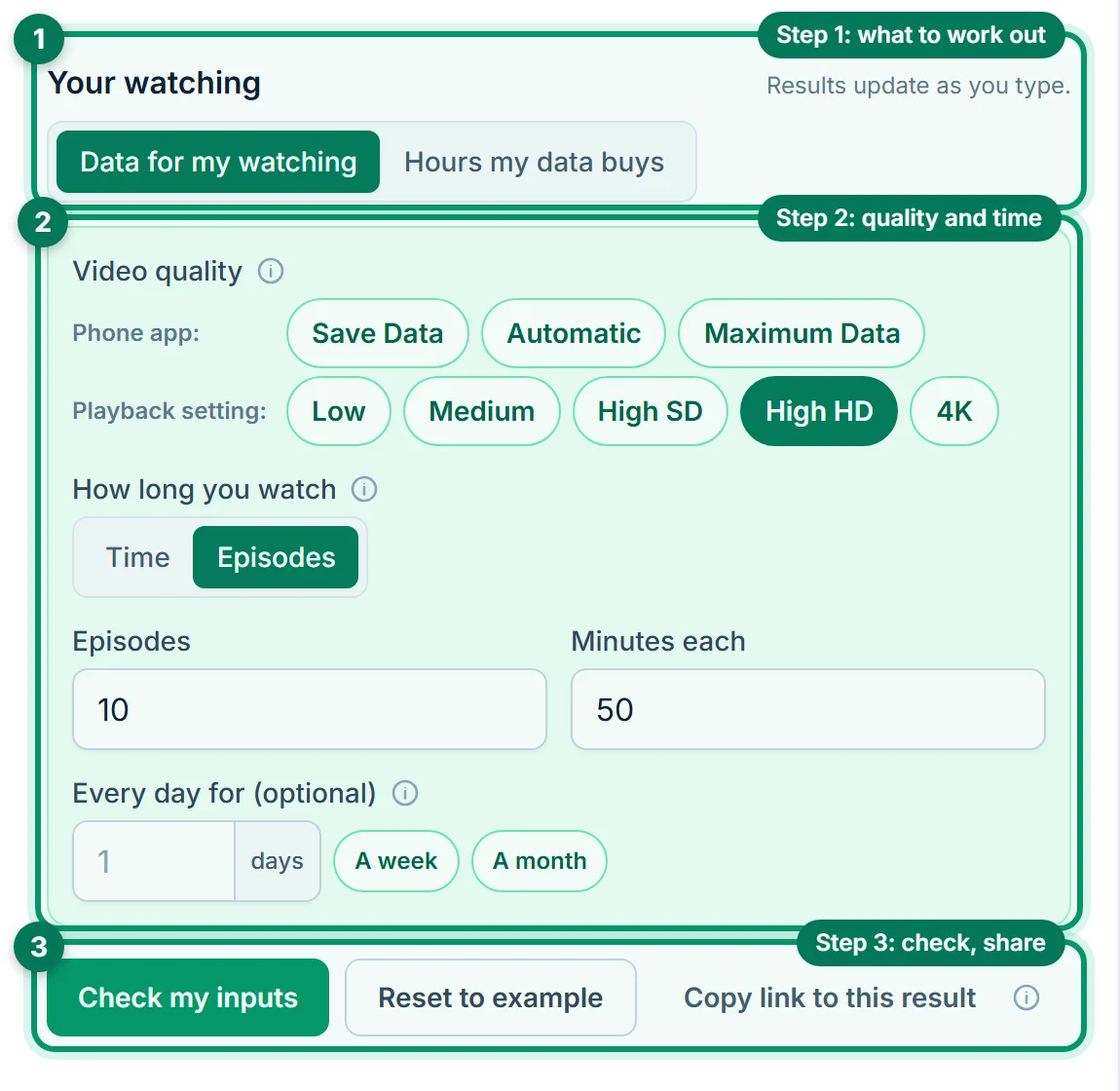
Data for my watching gives the data a watching session uses; Hours my data buys turns your data into watching time.
Pick the quality and the time
Choose the Video quality. Enter how long you watch as a number of Episodes and their length, or as Time. Add Every day for, or press A week or A month, to total it.
Read or share the result
Results update as you type. Copy link to this result keeps your numbers in a link.
Your results, explained
Here are the results for the example: a season of 10 episodes of 50 minutes in HD.
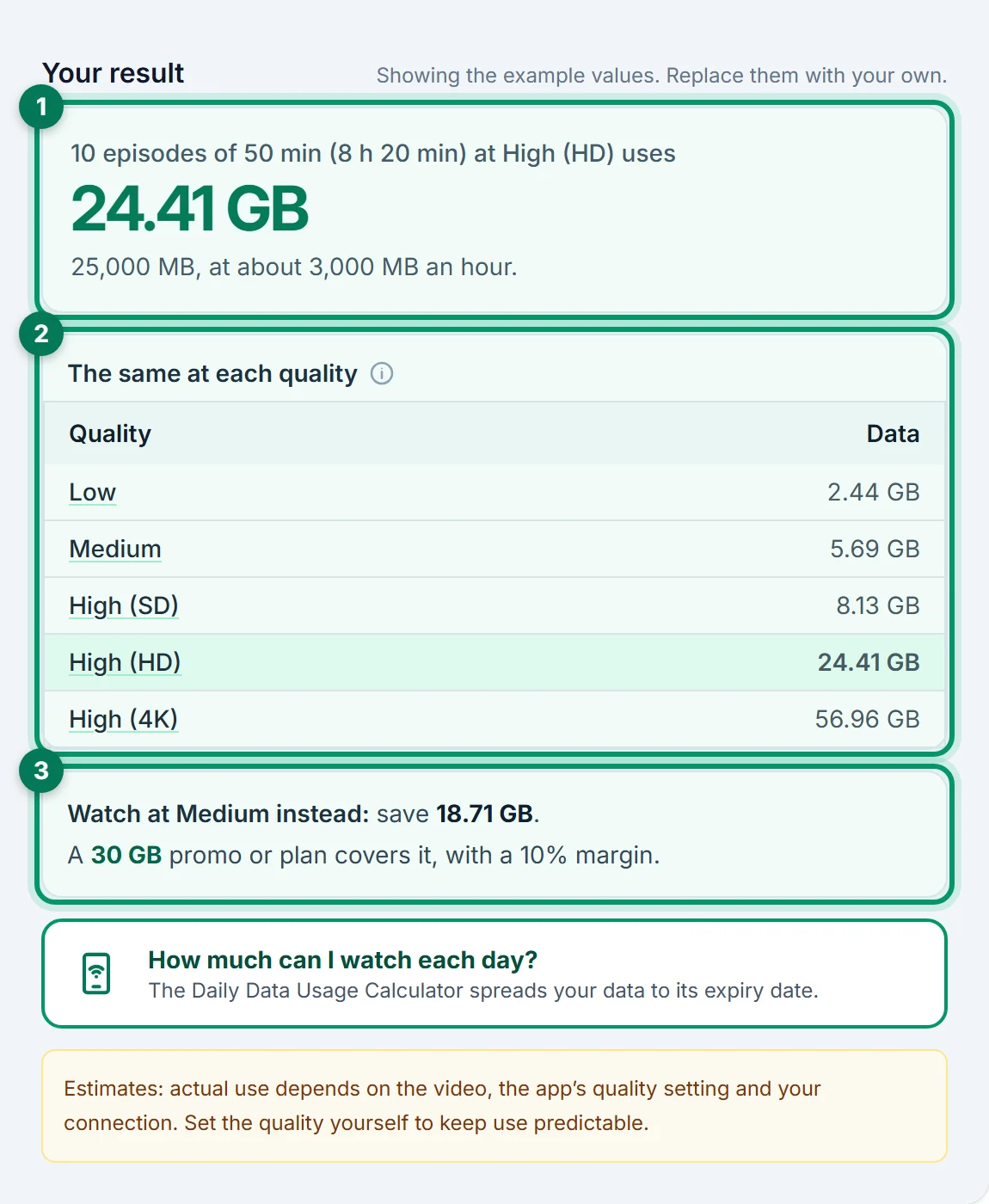
1. 10 episodes in HD use 24.41 GB
10 episodes of 50 minutes is 500 minutes, or 8 h 20 min. Netflix’s High (HD) setting uses up to 3,000 MB an hour, so 8.33 × 3,000 = 25,000 MB, which is 24.41 GB as mobile networks count it (1 GB = 1,024 MB).
Netflix gives one “up to” figure per setting: a quiet drama can use less than an action film.
2. The same at each quality
The same season at each playback setting: Low 2.44 GB, Medium 5.69 GB, High in SD 8.13 GB and High in 4K 56.96 GB. Select a quality to switch to it.
Pick a Phone app setting instead and the table shows Save Data, Automatic and Maximum Data.
3. Save at Medium, and the promo that covers it
Watching at Medium instead saves 18.71 GB over the season. With a 10% margin, a 30 GB promo or plan covers it in HD.
On a phone screen, Medium usually looks fine; HD and Ultra HD matter more on a TV.
How each mode works: inputs and results
Answers: How much data does watching Netflix use?
Inputs
| Input | What to enter |
|---|---|
| Video quality | The phone app’s Mobile Data Usage setting (Save Data, Automatic, Maximum Data), or the playback setting on a TV or the web (Low, Medium, High in SD, HD or 4K). Example: High (HD) |
| How long you watch | A number of episodes and their length, or hours and minutes. Example: 10 episodes of 50 min, or 2 hours |
| Every day for (optional) | Repeat it each day for a week, a month or any number of days. Example: Blank, or 30 days |
Results
| Result | What it tells you |
|---|---|
| The data it uses | The main result, in GB and MB. |
| The same at each quality | The same watching at every quality, to compare. |
| Save, and the promo that covers it | What a lower setting saves (Medium for High, Save Data for Automatic), and a promo size with a 10% margin. |
The maths
Data = hours × MB an hour
GB = MB ÷ 1,024
Promo = data × 1.1, rounded up to a common size
Example
10 episodes of 50 min in HD: 8.33 h × 3,000 = 25,000 MB, or 24.41 GB.
Answers: How long can I watch Netflix with the data I have?
Inputs
| Input | What to enter |
|---|---|
| Video quality | The setting you watch at. Example: High (HD) |
| Your data | The data you have, in GB or MB. 1, 3, 5 or 10 GB fills it in. Example: 5 GB |
Results
| Result | What it tells you |
|---|---|
| Your data lasts | The main result: the watching time at that quality. |
| At each quality | The same data at every quality. |
The maths
Hours = MB ÷ MB an hour
Example
5 GB is 5,120 MB: 1 h 42 min in HD, 7 h 18 min at Medium, 20 h on the phone app’s Automatic setting.
Netflix data usage by quality
Netflix’s own figures for an hour of watching, all “up to”. The phone app has its own Mobile Data Usage setting; TVs and the web use the profile’s playback setting, which also caps the phone app.
| Quality | MB an hour | An hour a day for 30 days |
|---|---|---|
| Phone app: Mobile Data Usage | ||
| Save DataAbout 6 hours per GB | 171 | 5 GB |
| AutomaticAbout 4 hours per GB; the default | 256 | 7.5 GB |
| Maximum Data1 GB per 20 minutes or more | 3,072+ | 90 GB |
| TV and web: playback setting | ||
| Low | 300 | 8.8 GB |
| Medium | 700 | 20.5 GB |
| High (SD) | 1,000 | 29.3 GB |
| High (HD) | 3,000 | 87.9 GB |
| High (4K) | 7,000 | 205.1 GB |
Worked example: a movie night on a 5 GB promo
You have 5 GB left and want to watch a 2-hour movie on your phone. These figures are illustrative.
In HD: 2 × 3,000 = 6,000 MB = 5.85 GB, more than you have
At Medium: 2 × 700 = 1,400 MB = 1.36 GB
Watch at Medium and 3.63 GB is still left
Or download the movie on Wi-Fi before you go: watching a download uses no mobile data at all.
How to watch Netflix on less data
- Set Save Data on your phone. My Netflix → menu → App Settings → Mobile Data Usage → Save Data: about 6 hours per GB instead of 4.
- Avoid Maximum Data unless your mobile data is unlimited: it can use 1 GB in 20 minutes.
- Download on Wi-Fi. Downloads play without using mobile data. Keep App Settings → Downloads → Wi-Fi Only on.
- Turn off autoplay previews. Trailers on the home screen use data too.
- Keep HD for Wi-Fi. On a phone, Medium is hard to tell apart from HD.
Check your real usage on your phone
The figures here are typical. Your phone counts the mobile data Netflix actually uses, so after a week or two, compare it with the calculator and adjust.
Android
- Open Settings → Network & internet (on Samsung, Connections).
- Choose SIMs or Data usage, then App data usage.
- Set the date range to your promo or billing period and find Netflix in the list.
iPhone
- Open Settings → Mobile Service (Mobile Data or Cellular on older versions).
- Scroll to the list of apps to see what each has used.
- The count does not reset by itself: tap Reset Statistics at the bottom when a new promo starts.